
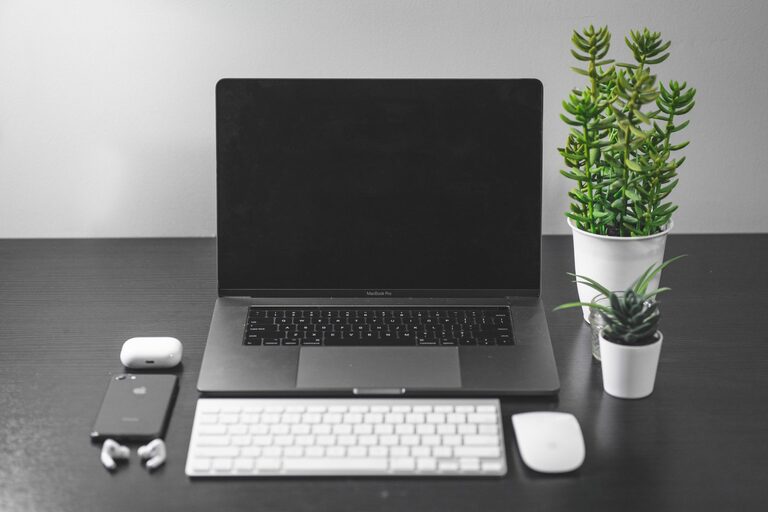
How to Declutter Your Digital Life
Digital clutter can build up quietly. A crowded inbox, overflowing photo library, scattered files, unused apps, and constant notifications may not seem serious on their own, but together they can make everyday tasks feel harder.
The good news is that you do not need to organize everything at once. A few focused habits can make your digital life simpler, faster, and easier to maintain. Use this guide to create a practical decluttering plan that fits your schedule.
Start With a Simple Digital Audit
Before deleting anything, take a quick look at the digital spaces you use most often. The goal is to understand where clutter is coming from and which areas cause the most frustration.
Make a list of your main digital spaces, such as:
– Email accounts
– Computer folders
– Cloud storage
– Smartphone apps
– Photo and video libraries
– Web browser bookmarks
– Download folders
– Notifications
– Notes and task lists
Next, choose one or two areas that affect you most. If you regularly miss important emails, start with your inbox. If you cannot find files when you need them, organize your computer or cloud storage first.
Starting small makes the process more manageable and gives you a quick sense of progress.
Organize Your Files With a Clear System
A simple file system is easier to maintain than a complicated one. Create a small number of broad folders based on the way you work or live.
For example, you might use folders such as:
– Personal
– Work
– School
– Photos
– Documents
– Projects
– Archive
Within each folder, create subfolders only when necessary. Avoid creating many layers of folders that make files difficult to reach.
Use Consistent File Names
A clear file name saves time later. Instead of names like `document1` or `finalversionnew`, use names that explain what the file contains.
A useful format might include:
– The subject
– The date
– The version, if needed
For example:
`Home_Insurance_2026-08.pdf`
`Website_Content_Plan_v2.docx`
Choose one date format and use it consistently. Sorting files by year and month can also make older documents easier to find.
Clear Your Downloads Folder
The downloads folder often becomes a temporary storage area that is never cleaned out. Set aside a few minutes to review it.
Delete files you no longer need, move important files to their proper folders, and rename anything worth keeping. Going forward, try to handle downloaded files soon after you receive them.
Tidy Your Email Inbox
You do not need to reach inbox zero to have an organized email account. The main goal is to make new messages easier to manage and important information easier to find.
Begin by deleting obvious junk and outdated messages. Then search for large groups of emails, such as:
– Store promotions
– Automated alerts
– Old newsletters
– Travel confirmations from past trips
– Expired offers
– Notifications from services you no longer use
Use the unsubscribe link in newsletters you never read. For messages you want to keep, create a small number of folders or labels, such as:
– Action needed
– Receipts
– Personal
– Work
– Reference
Try not to create a separate folder for every topic. Too many categories can make email management more difficult.
Create an Email Routine
Set specific times to process email instead of checking constantly. During each session, decide whether to:
– Delete the message
– Reply immediately
– Add a task or reminder
– Archive it for reference
– Move it to a useful folder
This approach keeps your inbox from becoming a running list of unfinished decisions.
Reduce App and Device Clutter
Unused apps take up storage and can distract you from the tools you actually need. Review the apps on your phone, tablet, and computer.
Remove apps that:
– You have not used in several months
– Duplicate another app
– No longer support your needs
– Send unnecessary alerts
– Were installed for a one-time purpose
Before deleting an app, check whether it stores important information locally. If needed, save or export that information first.
You can also organize remaining apps by placing them into a few folders, such as Communication, Travel, Work, Reading, and Utilities. Keep your most frequently used apps on the main screen and move less important ones elsewhere.
Take Control of Notifications
Notifications are one of the most visible forms of digital clutter. They interrupt your attention and can make your devices feel demanding.
Review notification settings for each device and app. Turn off alerts that are not useful, especially those related to promotions, games, social updates, and routine activity reports.
Keep notifications for information that truly requires your attention, such as:
– Direct messages
– Calendar reminders
– Delivery updates
– Important account alerts
– Calls from selected contacts
Consider using a scheduled summary or a quiet period if your device supports it. Fewer interruptions can make it easier to focus without requiring you to stop using helpful apps.
Clean Up Your Photos and Videos
Photo libraries can become difficult to search when they contain duplicates, screenshots, blurry images, and files you no longer want.
Start by removing easy-to-identify clutter:
– Duplicate photos
– Accidental screenshots
– Blurry images
– Unwanted downloads
– Short videos with no value
– Images saved temporarily
Then create albums for meaningful groups, such as trips, celebrations, family events, or ongoing projects. You do not need to organize every photo perfectly. A few useful albums and a reliable search feature may be enough.
Make sure important photos are backed up in a location you trust. After confirming that your backup works, you can remove unnecessary copies from devices to free up space.
Review Cloud Storage and Online Accounts
Cloud storage can become just as crowded as a physical hard drive. Review the files stored in services you use and remove duplicates or outdated versions.
Look for:
– Old shared files
– Duplicate documents
– Completed projects
– Large videos
– Unused templates
– Files saved in several locations
It is also helpful to review online accounts you no longer use. Close or remove accounts only after checking whether they contain information you need. For active accounts, update your contact details and review available privacy and security settings.
Simplify Your Browser
A cluttered browser can slow down your workflow. Review your bookmarks and remove links that are outdated or no longer useful.
Organize important bookmarks into a few folders, such as:
– Work
– Reading
– Shopping
– Travel
– Tools
You can also close old tabs and save useful pages to a reading list or bookmark folder. If you have many open tabs for one project, consider creating a dedicated folder or document with the key links.
Create a Maintenance Habit
Decluttering works best when it becomes a light routine rather than a major annual project. Choose a schedule that feels realistic.
For example:
– Spend five minutes clearing downloads each Friday
– Review notifications once a month
– Unsubscribe from unwanted emails as they arrive
– Remove unused apps every few months
– Review cloud storage twice a year
– Organize recent photos at the end of each month
Use a timer when needed. A short, focused session is often enough to improve one small area.
Keep Your Digital Life Manageable
Digital organization is not about making every folder perfect. It is about reducing friction and making useful information easier to find.
Start with the space that causes the most stress. Delete what you no longer need, organize what you want to keep, and create simple habits to prevent clutter from returning. With small, regular improvements, your devices can become calmer, more useful tools instead of another source of unfinished tasks.
